All about AWS Authentication
A deep dive on AWS authentication and guidance for using AWS credentials for local development and in the cloud.
Many of our projects use AWS as a cloud infrastructure provider. This practice provides an overview of how AWS authentication works, and guidance for managing AWS credentials both locally and in the cloud.
Key Points
- For local development, use AWS IAM Identity Center (SSO) to manage access to multiple AWS accounts and roles.
- For cloud development, rely on IAM Roles attached to the service (EC2 Instance Metadata Service, ECS Task Role, Lambda Execution Role, etc).
- Set up AWS CLI to use AWS IAM Identity Center (SSO) using
aws configure sso. - Don't forget to run
aws sso login --profile <your-profile-name>to authenticate and get temporary credentials. These do expire eventually. - Use the
AWS_PROFILEenvironment variable to switch between different accounts and roles easily. - Don't hard-code credentials or profile names in code; use
AWS_PROFILEinstead.
Background: How does authentication work in AWS?
AWS Identity and Access Management (IAM) is the service that manages authentication and authorization for AWS resources. AWS IAM has two primary methods for identifying users and applications:
- Users are specific, concrete user accounts that can have long-term credentials and are managed in AWS Identity and Access Management (IAM).
- Roles are a set of permissions that can be assumed by humans or services. Roles cannot have long-term credentials; instead, they are issued temporary credentials when assumed.
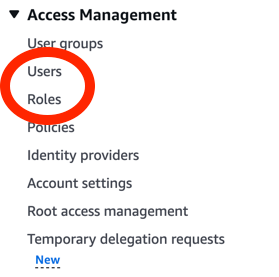
Whether you're using short or long term credentials, the credential format will be similar. AWS credentials consist of the following properties:
- Access Key ID: A unique identifier for the credentials.
- Secret Access Key: A secret key used to sign requests.
- Session Token: A token used to validate temporary credentials (only present for temporary credentials).
Important
In practice, long term credentials are a security risk because they can be lost or stolen and used indefinitely. For this reason, we generally don't use them and prefer assuming roles and using temporary credentials wherever possible.
AWS Identity Center (formerly known as AWS SSO)
As mentioned earlier, we prefer not to use long-term credentials for security reasons. Instead, we use IAM Identity Center to set up single sign-on (SSO) access to multiple AWS accounts and roles. This allows us to authenticate once and then assume roles in different accounts without needing to manage long-term credentials.
Here's a simplified diagram of how AWS IAM Identity Center works if you were using Google as your identity provider (IdP):
When you sign in to AWS IAM Identity Center, you are redirected to your identity provider (IdP) to authenticate. Once authenticated, you are redirected back to AWS IAM Identity Center, where you can select the AWS account and role you want to assume. AWS IAM Identity Center then issues temporary credentials for the selected role, which you can use to access AWS resources.
How does this work from the command line or in SDKs?
The AWS SDKs and CLI use a credential provider chain to look for credentials in a specific order. You can see the full details in the AWS documentation for the Javascript AWS SDK, but here's a quick summary as it pertains to using from the CLI and SDKs:
- Credentials given directly in code or CLI flags
- Credentials in environment variables
- Credentials from SSO (AWS IAM Identity Center)
- Credentials from .ini files in the shared credentials file (
~/.aws/credentials) - Credentials from the EC2 Instance Metadata Service or ECS Task Role (when running in AWS).
While there are many ways to provide credentials to AWS tools, we recommend the following simple guideline:
- Use AWS SSO (IAM Identity Center) for local development.
- Use the credentials already available in AWS services when running in the cloud. For example, in Lambda, credentials for the Lambda execution role are automatically available to you via the "Instance Metadata Service (IMDS)", which we'll talk more about later.
Profiles
Most of the "providers" in the credential provider chain support the concept of profiles, which are named sets of configuration values (including credentials). You can have multiple profiles for different accounts and roles, and switch between them easily. Each profile is identified by a unique name, and references a specific role in a specific account in a specific organization.
We'll talk more about how to set up and use profiles in a moment, but for now, just know that once you've set up profiles, you can easily use them to target a particular organization/role/account with your code or CLI commands. For example:
# Run your script targeting the myorg-dev account using the admin role:
AWS_PROFILE=myorg-dev-admin node my-script.js
# Run your script targeting the myorg-prod account using the readonly role:
AWS_PROFILE=myorg-prod-readonly node my-script.js
Important
The profile name is unique to your local configuration. Don't put it in code that will be shared with others. Instead, use local environment variables to set it as in the examples above.
Managing AWS Credentials and Profiles for Local Development
When developing locally, you may need to access multiple AWS accounts and roles for different projects. AWS IAM Identity Center (SSO) makes it easy to manage access to these accounts from a central location. This section outlines how to set up and manage multiple AWS profiles for local development.
AWS CLI
The AWS CLI v2 has built-in support for AWS IAM Identity Center (SSO), and is the standard way to manage AWS credentials and profiles. You can set up a new SSO profile using the aws configure sso command.
Prerequisites:
- Have access to an AWS IAM Identity Center (SSO) instance set up by your organization. These will have URLs like
https://my-org.awsapps.com/start, and you should be able to visit this in the browser and log in using your SSO credentials. - Install AWS CLI v2. You can find installation instructions in the AWS CLI User Guide.
Once you've got those prerequisites in place, you can create a new SSO profile using the following command:
aws configure ssoThis will prompt you for the following information, and open a browser window to authenticate as part of the process:
- SSO session name: enter something here that describes your SSO session, which can be shared across profiles for the same organization. We recommend the first part of the start URL (eg: if the start URL is https://my-org.awsapps.com/start, make it
my-org) - SSO start URL: eg: https://my-org.awsapps.com/start
- SSO region: eg
us-east-1 - The AWS account you want to access: select from the list
- The role you want to assume: select from the list
- Profile Name: enter a name for this profile that uniquely describes the combo of organization, account, and role, eg:
myorg-dev-admin, ormyorg-prod-readonly. You will need to remember this name later, so make sure it's something you can easily recall.
Completing these steps will automatically create a new profile in your AWS configuration file (~/.aws/config) that looks something like this:
[profile myorg-prod-admin]
sso_session = my-org
sso_account_id = 123456789012
sso_role_name = AdministratorAccess

[sso-session my-org]
sso_start_url = https://my-org.awsapps.com/start
sso_region = us-east-1
sso_registration_scopes = sso:account:access
You can repeat these steps to add as many profiles as you need for different organizations, accounts and roles. When you've finished configuration, you can test your configuration by running the following command:
aws sts get-caller-identity --profile <your-profile-name>If everything is set up correctly, you should see JSON output that describes your user identity.
Here are some useful AWS CLI SSO commands:
aws configure sso: Set up a new SSO profile.aws configure list-profiles: List all configured profiles.aws sso login --profile <your-profile-name>: Authenticate and get temporary credentials for the specified profile.aws sso logout --profile <your-profile-name>: Log out of the specified profile and clear temporary credentials.aws sts get-caller-identity: Get information about the currently authenticated user. This is thewhoamicommand for AWS.
AWS oh-my-zsh plugin
If you use the oh-my-zsh shell, you can also install the AWS plugin to manage profiles more easily. This plugin provides a thin wrapper over the aws CLI via the asp (AWS set profile) command, which allows you to switch between profiles quickly. For example:
asp <profile-name> login: Runaws sso login --profile=<profile-name>andexport AWS_PROFILE=<profile-name>asp <profile-name> logout: Runaws sso logout --profile=<profile-name>and unsetAWS_PROFILEasp <profile-name>: Runexport AWS_PROFILE=<profile-name>
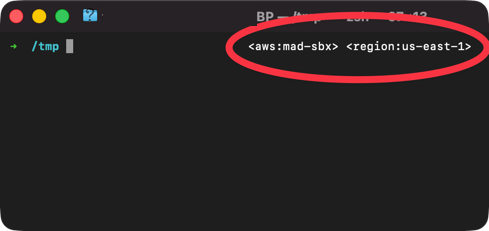
The plugin provides a visual indicator in your shell prompt to show the current AWS profile (reading the $AWS_PROFILE environment variable). This is handy to avoid accidentally running commands in the wrong account, and even if you use other methods to manage profiles, you can still benefit from this visual indicator.
Using AWS SDKs with credentials
When writing code, we want to avoid hard-coding credentials or profile names in code. Instead, we rely on the AWS SDKs to find the right credentials for us based on our environment. This is trivially easy:
import { S3Client, ListBucketsCommand } from "@aws-sdk/client-s3";
// Just construct the client with no credentials. The SDK will find them for us.
const s3Client = new S3Client();
await s3Client.send(new ListBucketsCommand({}));
Nowhere in this code do we specify credentials. This is important, because it means we can share this code without worrying about leaking credentials. Instead, we just need to make sure the AWS credentials are set up correctly when running the code.
Here's a quick diagram of how that works both locally and in the cloud:
Local Development
For local development, make sure you've set up a profile and logged in using one of the previously mentioned methods. To use the profile:
- Log in using
aws sso login --profile <your-profile-name>, or use theasp <profile-name> logincommand if using theoh-my-zshplugin. - Set the
AWS_PROFILEenvironment variable and run your code:AWS_PROFILE=<your-profile-name> node my-script.js # or, export it and use it for multiple commands export AWS_PROFILE=<your-profile-name> node my-script.js
In the Cloud
When your code runs in AWS (Lambda, ECS, EC2, etc.), you don't need to configure credentials at all. The AWS SDK automatically discovers credentials through the Instance Metadata Service (IMDS).
Each compute service has its own way of attaching a role:
| Service | Term for Role Attachment |
|---|---|
| EC2 | Instance Profile |
| ECS | Task Role |
| Lambda | Execution Role |
From your code's perspective, these all work identically—if a role is attached, credentials appear automatically. Infrastructure configuration (Terraform, CloudFormation, or the AWS console) handles attaching the role.
Tip
To verify credentials are available from within a running service, use aws sts get-caller-identity. This shows which role the service is assuming.
Using AWS CLI with credentials
When using the AWS CLI, we also want to avoid hard-coding credentials or profile names in scripts. Instead, we can use the --profile flag or the AWS_PROFILE environment variable to switch between profiles easily.
To use the profile:
- Log in using
aws sso login --profile <your-profile-name>, or use theasp <profile-name> logincommand if using theoh-my-zshplugin. - Use the profile when running AWS CLI commands.
aws s3 ls --profile <your-profile-name>
AWS_PROFILE=<your-profile-name> aws s3 ls
# or, export it and use it for multiple commands
export AWS_PROFILE=<your-profile-name>
aws s3 ls
Troubleshooting & FAQ
- How long do temporary credentials last?
- Temporary credentials issued by AWS IAM Identity Center (SSO) typically last for 1 hour, but this can be configured by your AWS administrator, so it depends on the account. You can always run
aws sso login --profile <your-profile-name>again to refresh your credentials. - Do I need to refresh temporary credentials in cloud environments?
- No, when running in AWS (EC2, ECS, Lambda, etc), the SDKs automatically refresh temporary credentials for you as needed.
- What if I get an error about expired credentials?
- This usually means your temporary credentials have expired. Just run
aws sso login --profile <your-profile-name>again to refresh them. - Can I share my AWS config profiles with others?
- As long as your config profiles don't contain any sensitive information (like long-term credentials), it's generally safe to share them directly with others on the team. Make sure others have access to the same AWS IAM Identity Center (SSO) instance and roles. You should avoid sharing these configurations publicly, as they may expose information about the AWS configuration such as account IDs and role names that the organization considers sensitive.
Help us improve
Your feedback helps us create better resources for teams like yours.
Last updated on
Architecting for Testability
How to design software that is easy to test
Human Centered Testing
For complex systems, unit and integration tests are inadequate for catching many types of issues that would prevent users from successfully using the system. Human-centered testing focuses on simulating real user interactions and behaviors to ensure a better user experience.